This is Chapter 5 of the book, unchanged. Follow this one chapter and you end up with a bot that sends you a company status briefing on Telegram every morning.
- Prerequisites: a Windows PC, Claude Code installed as in Chapter 3 (paid subscription), the company folder from Chapter 4, and a phone for Telegram sign-up. This sample does not replace Chapters 3–4.
- What you type: two requests to Claude (the grey boxes in the text) plus your Telegram bot token and chat_id. You do not write code yourself.
- What you get: a "Good morning — here is today's company status" message in your Telegram at 8:00 every day. A test run before scheduling is part of the steps, so you confirm delivery first.
- How to stop it: open Task Scheduler from the Start menu, right-click the task → Disable (or Delete to remove it). If you suspect the bot token leaked, use
/revokein BotFather to issue a new one. - Cost: Telegram and Task Scheduler are free. The Claude Code subscription is separate (see Chapter 2).
- Where the book goes next: Chapter 6 (checkpoint: backups and verification habits), Chapter 13 (the consolidated CEO report). Chapters 7–11 (YouTube, blog, brokerage APIs) are extension case studies — the brokerage chapters document Korean services and are not a setup guide for every country.
Chapter 5 — Your First Employee: the Morning Briefing Bot
Up to now, nothing happened unless you talked to Claude in the moment. This chapter builds your first employee that moves on its own, with no one telling it to — a bot that reports your company's status over Telegram (a messaging app) every single morning. The reason we call it your "first employee" is simple: this bot wakes itself up while you're still asleep, checks on things, and finishes its report — all on its own. This same pattern (scheduled run + report) repeats itself, unchanged, in the YouTube bot and blog bot starting in chapter 7. Master it here, and everything after gets a lot easier.
What You'll Need
- A smartphone (to install and sign up for Telegram), with a number that can receive an SMS
verification code
- Claude Code, installed in chapter 3, and your own company folder, created in chapter 4
- 45 minutes
Task Scheduler = an Alarm Clock
Windows already has a built-in program called Task Scheduler. It's a tool for setting alarms like "run this program every day at 8:00 AM." Even while a person is asleep, the computer wakes itself up and gets the job done. The bot you build in this chapter also runs every morning, sitting on top of this same alarm clock.

There are broadly two ways something can run automatically. One is an always-on process — it keeps running the whole time your computer is on, reacting the instant something happens. The other is a scheduled run — it switches on only at a set time, does its job, and shuts back down. This chapter's briefing bot is a scheduled run: it switches on once a day and back off, so the structure stays simple, and there's very little window of time for it to cause trouble while it's running. When you're building your first automation, start with a scheduled run.
Let's Do This: Install and Sign Up for Telegram
If you don't already have Telegram, install it first. If you're already using it, skip ahead.
- Search your smartphone's app store (the App Store on iPhone, Play Store on Android) for
"Telegram" and install it. If you'd like to use it on a PC too, you can also download it from telegram.org.
- Open the app and sign up with your own phone number. Enter the verification code you receive by
text, and that's it. 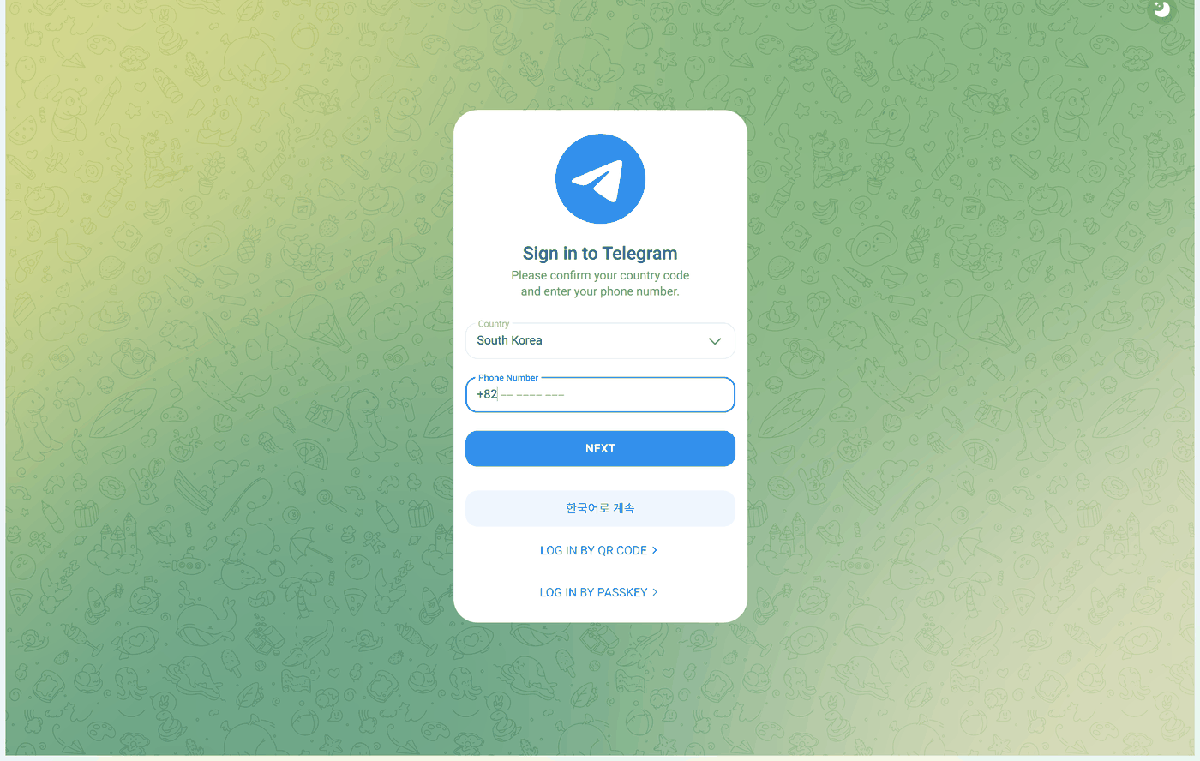
You should now see: Telegram's chat list screen, laid out much like any chat app you've probably used before — KakaoTalk (Korea's most common chat app), WhatsApp, or similar.
Let's Do This: Create a Telegram Bot (BotFather)
- Type BotFather into Telegram's search bar and start a conversation with it. (It's
Telegram's own official bot for issuing new bots.) 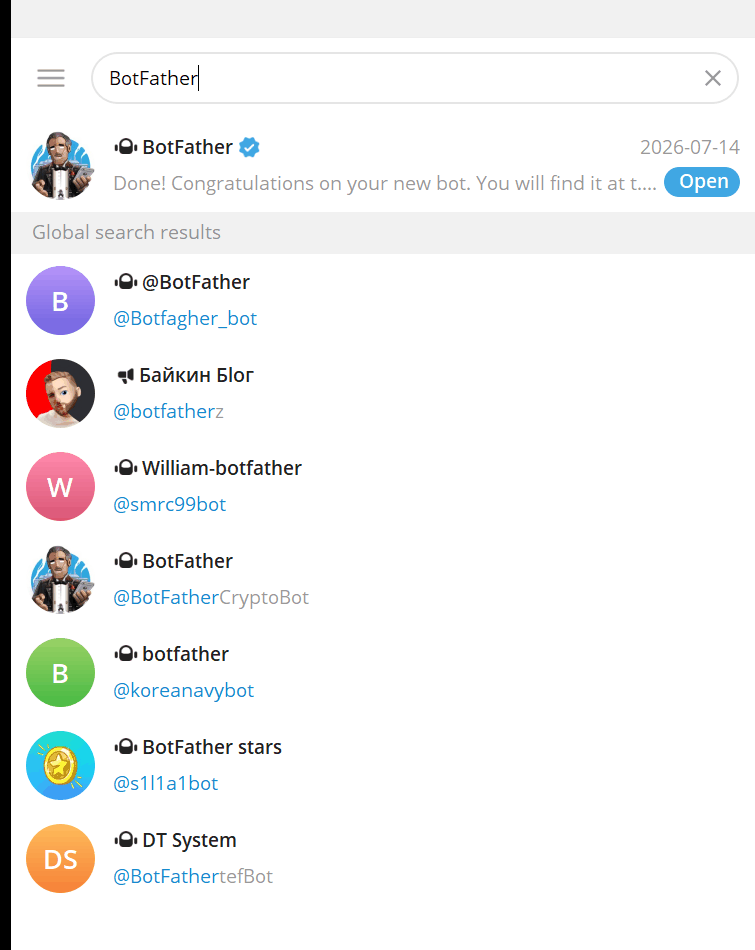
- Type
/newbotand send it. - When it asks for a bot name, type whatever name you'd like (e.g., "My Company Briefing Bot").
- When it asks for a username (a handle), you must enter a name that ends in bot (e.g.,
mycompany_briefing_bot). If it says the name's already taken, add a number to the end and try again (e.g., mycompany_briefing_bot2). 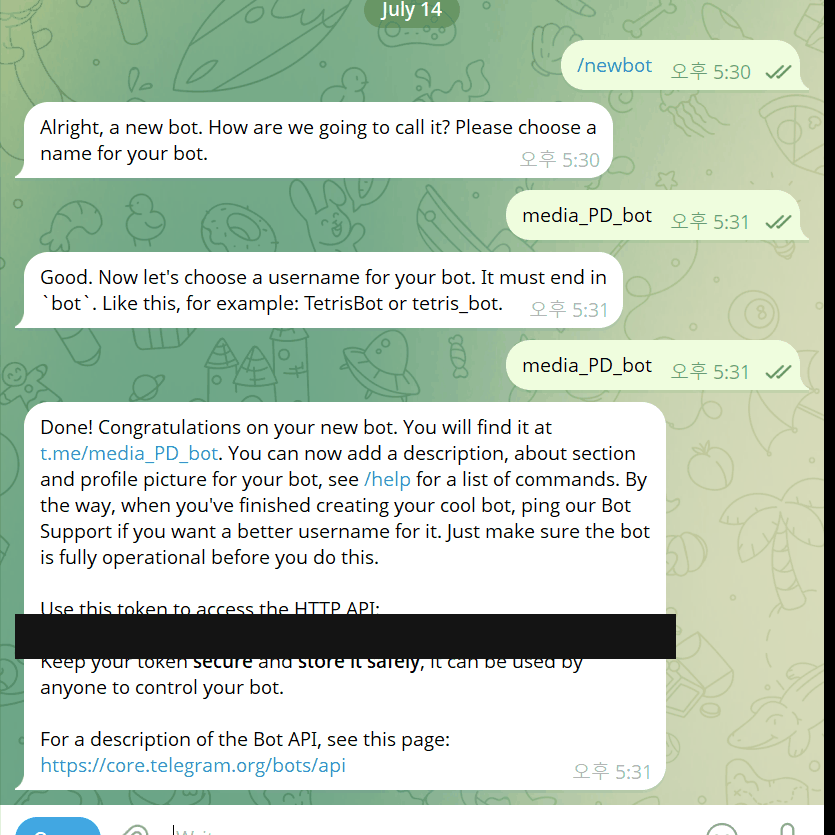
You should now see: BotFather send you a long string of characters (something like 123456:ABC-...). That's your token — the secret key that lets you control this bot.
⚠ Watch Out For This — a Token Is the Same as a Password
Treat the token you just received exactly like a bank account password. Don't post a screenshot of it anywhere online, and don't paste it into any group chat other people can see (pasting it into your own private conversation with Claude, like you're about to do below, is fine). If your token leaks, someone else can take control of your bot in your place.
Let's Do This: Find Your chat_id
- Send your new bot any message at all (e.g., "hello").
- Ask Claude:
Find my chat_id using this Telegram bot token: (paste your token)You should now see: Claude finds and reports back a numeric chat_id (a unique number that identifies your specific chat with the bot). Write both the token and the chat_id down somewhere safe. If the bot doesn't respond to anything, double-check you didn't skip step 1 (sending it a message first).
Let's Do This: Build the Health-Check Bot
Now ask Claude to build "a script that checks the company's status every morning and sends it over Telegram." You don't need to write any code yourself, and you don't need to check ahead of time whether Python (the programming language this script is written in) is installed on your computer — ask for the install in the same request below, and if it's missing, Claude installs it for you first.
Build me a health-check script in Python. If Python isn't on this computer, install it too, as
part of this. Check whether this computer's scheduled tasks finished successfully, check today's
date and time, and send a message that says "Good morning. Here's today's company status" to the
Telegram bot below. Here's the bot token and chat_id: (paste them)
You can also find the code Claude builds here in this book's Appendix A (the full prompt collection). You don't need to understand the code itself right now — just have Claude "run this right now as a test," and confirm a message shows up in Telegram. Here's why it's worth testing once before its scheduled time arrives: if you only discover a problem after the alarm has already gone off, you're stuck waiting until the next day. Test it now, and you can fix it right away instead.

You should now see: a message from your newly built bot arrive in your Telegram.
Let's Do This: Register It on the Alarm Clock
Task Scheduler has menus stacked several layers deep, which is confusing the first time you see it. So once again, just hand the whole thing to Claude.
- Ask Claude:
   Register the health-check script you just built in Windows Task Scheduler, so it runs
automatically every day at 8:00 AM.- Once Claude says it's registered, confirm it with your own eyes. Search for Task Scheduler
in the Start menu, open it, and check that the task you just created is in the list. 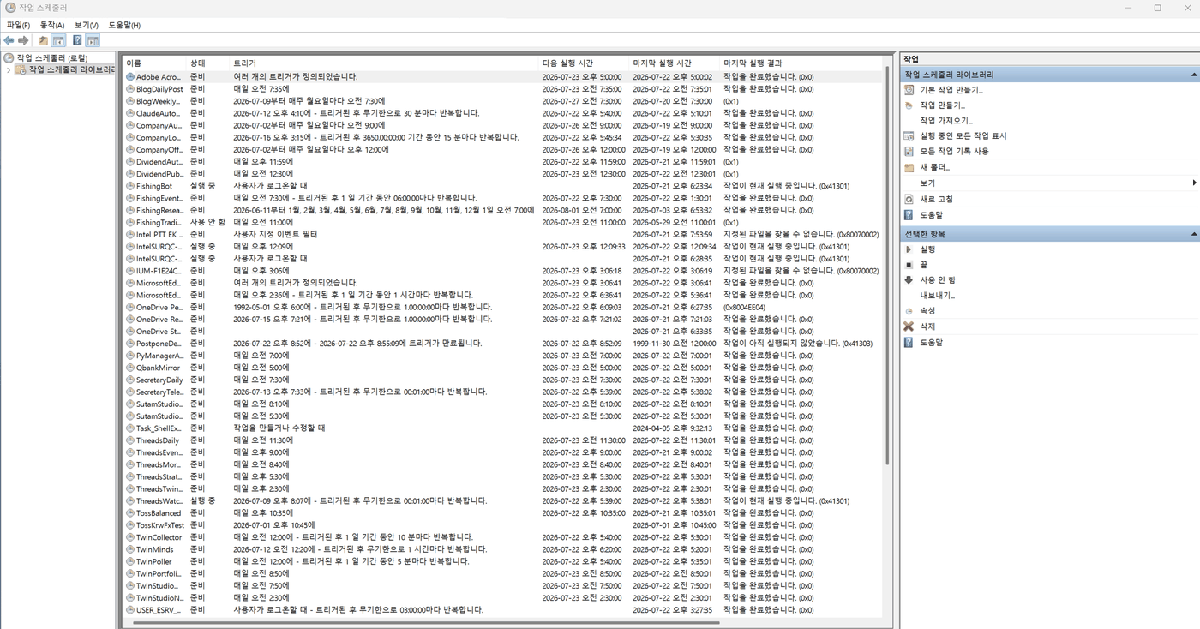
You should now see: a new task in the list, with its "Next Run Time" showing tomorrow (or today) at 8:00 AM. If it's missing from the list, or the time looks wrong, check Appendix B.
One More Line: Hiding the Console Window
That black window flashing on screen for a split second every morning before disappearing can be annoying. One more request to Claude fixes it.
Hide the black console window from view whenever this task runs.You should now see: starting the next day, no window pops up at all — just a quiet Telegram message arriving on its own.
From now on, every morning before you even open your eyes, this company's first employee has already clocked in, checked on things, and finished its report. All the human did was build it once, yesterday.
Why Telegram
The reason this book uses Telegram instead of KakaoTalk (Korea's most common chat app) is simple — Telegram opened up an official channel for bots (an API — a channel that lets a program automatically send and receive messages) from day one. BotFather is the gatekeeper standing at that channel's door. This same pattern gets reused again and again from here on — chapter 13's unified CEO report and chapters 10–11's trading alerts all move through a bot built exactly the way today's was.
One more thing — this same bot and chat can be reused later, even as your departments grow. There's no need to build a new bot for every department; just give the same bot one more instruction: "starting now, report on the YouTube channel's status too."
Checklist
- I installed Telegram and signed up with my phone number
- I created a bot with BotFather and received a token
- I found my chat_id
- I built the health-check script and received a test message
- I registered a daily 8:00 AM task in Task Scheduler
- I hid the console window from view
- I never captured or shared the token anywhere
Time needed: 10 minutes getting Telegram ready + 15 minutes creating the bot + 20 minutes for the script and registration = about 45 minutes total. Cost: $0 (Telegram and Task Scheduler are both free).